Adding recipes
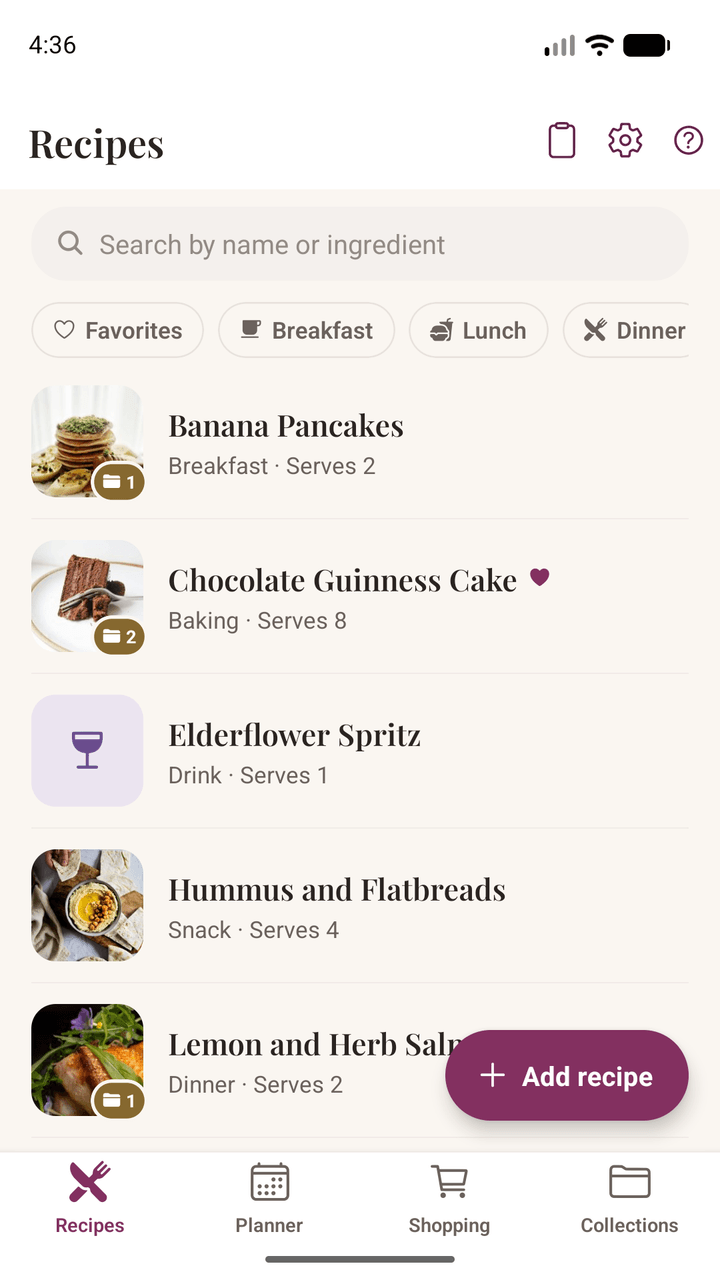
Import from a website or a social post
The quickest way is to send the recipe to Damson Kitchen from wherever you found it. In your browser, Instagram, or your notes app, tap Share and pick Damson Kitchen. The app reads the page and fills in the title, ingredients, and method for you to check before saving.
You can also tap the clipboard icon at the top of My Recipes, which opens a box you can paste a link or the recipe text straight into.
Two things worth knowing:
- Always give it a quick read before saving. Recipe pages vary enormously, and the app is deliberately cautious — it would rather leave something as an ingredient than guess wrong and quietly drop it.
- Imported recipes never bring a photo with them. That's on purpose: a photo on someone else's site belongs to whoever took it. You get a link back to the original instead, and you're free to add your own picture.
Scan a recipe from a photo
The recipes most worth keeping are often the ones with no link to share — a page of a cookbook you own, a card in someone's handwriting, a photo a relative sent you. Tap the clipboard icon on My Recipes, then Scan from a photo, and either take a picture or choose an image you already have saved.
The words are read on your phone. Nothing is uploaded, and no picture of your recipe leaves the device — which is the whole reason it reads handwriting less well than a service that sends your photos away would.
- Printed pages read well; joined-up handwriting often does not. If a scan comes back as nonsense, that is usually why. Typing it out is quicker than fighting it.
- Two-page recipes are fine. Scanning again adds to what is already in the box instead of replacing it, so you can do one page after the other.
- Read the amounts before you import. This is the one to watch. Scanning misreads a quantity in ways that look perfectly reasonable rather than obviously broken, and a wrong amount would scale wrongly every time you cooked it. The text always lands in the box for you to check first — that check is the point of it, not politeness.
Type a recipe straight in
The same box takes a recipe typed from scratch, which many people find a more natural way in than filling out a form. Write it as you would on paper — the title, then the ingredients, then the method — and tap Import Recipe. Damson Kitchen sorts it into the right places.
Two things in that box make it easier to get right:
- Check ingredients & method adds INGREDIENTS and METHOD headings where it thinks the recipe divides. They are not decoration — those words are exactly what the app reads when it imports, so if a heading is in the wrong place, moving it moves the dividing line. Press the button again after an edit and the headings move to match.
- The up and down arrows move whichever line your cursor is in, which saves selecting, cutting and pasting to shift one line — useful for a heading that has landed a line too high, or an ingredient that has ended up among the steps.
Write your own
Tap Add recipe and fill in as much or as little as you like — only a title is required.
- Ingredients are just typed as you'd say them — "200g plain flour", "2 large eggs", "a few sprigs of thyme". Underneath, the app works out the amount so it can scale the recipe later. It shows you what it understood in small grey text beneath the line; tap that to correct it if it got something wrong.
- Vague amounts are fine. "A good handful of parsley" stays exactly as you wrote it. Nothing is invented, and the line simply sits out of any scaling.
- Steps can be reordered by dragging the numbered circle.
- Photos: tap + to take a photo of the finished dish or choose one from your library. The first photo is the cover — tap any other photo to promote it.
Ingredient sections
Recipes with parts — a pastry and a filling, a cake and its icing — can group ingredients under headings. On import the app spots headings like "For the topping" and sets them up for you. To add one yourself, use the Section action above the ingredient list.
Deleting a section never throws ingredients away without asking. If it has anything in it, you'll be offered the option to move those ingredients into the section next to it instead. On the last remaining section the control becomes Remove heading, which turns the list back into a plain one with everything intact.
Cooking
Change the number of servings
If a recipe says how many it serves, a stepper sits at the top of the ingredients. Change the number and every amount rescales — shown as kitchen fractions, so you get ¾ tsp rather than 0.75. Tap the number itself to type one instead of tapping + repeatedly.
This never rewrites the recipe. It's a view, and the original amounts are always what you saved. Tap the "scaled from" hint to go back.
Tap any ingredient to check it off as you gather it. Those ticks clear when you leave the recipe.
Cook Mode
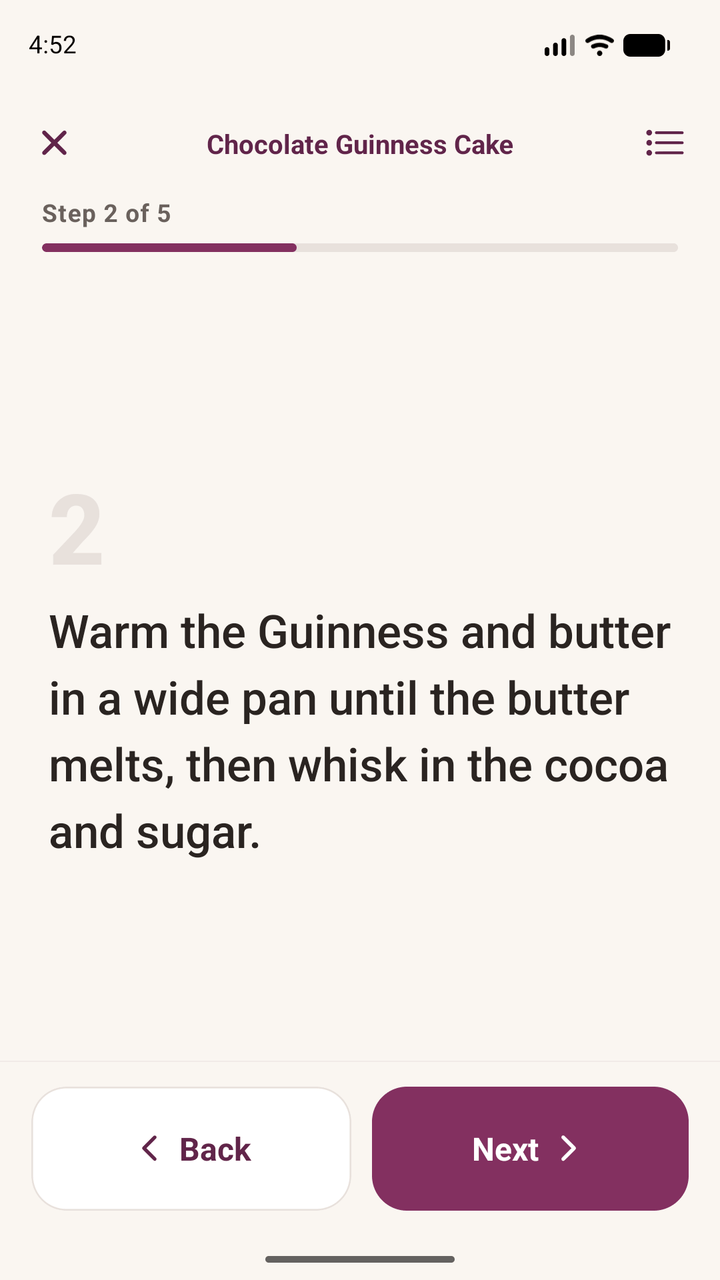
Tap Cook to get one step at a time in large text, sized to be read at arm's length with floury hands. Swipe or use the full-width buttons to move between steps, and pull up the bottom sheet at any point to check the ingredients without losing your place.
Your screen stays awake for as long as Cook Mode is open, and goes back to normal the moment you leave it.
If you scaled the servings before tapping Cook, Cook Mode shows the scaled amounts too.
Planning the week
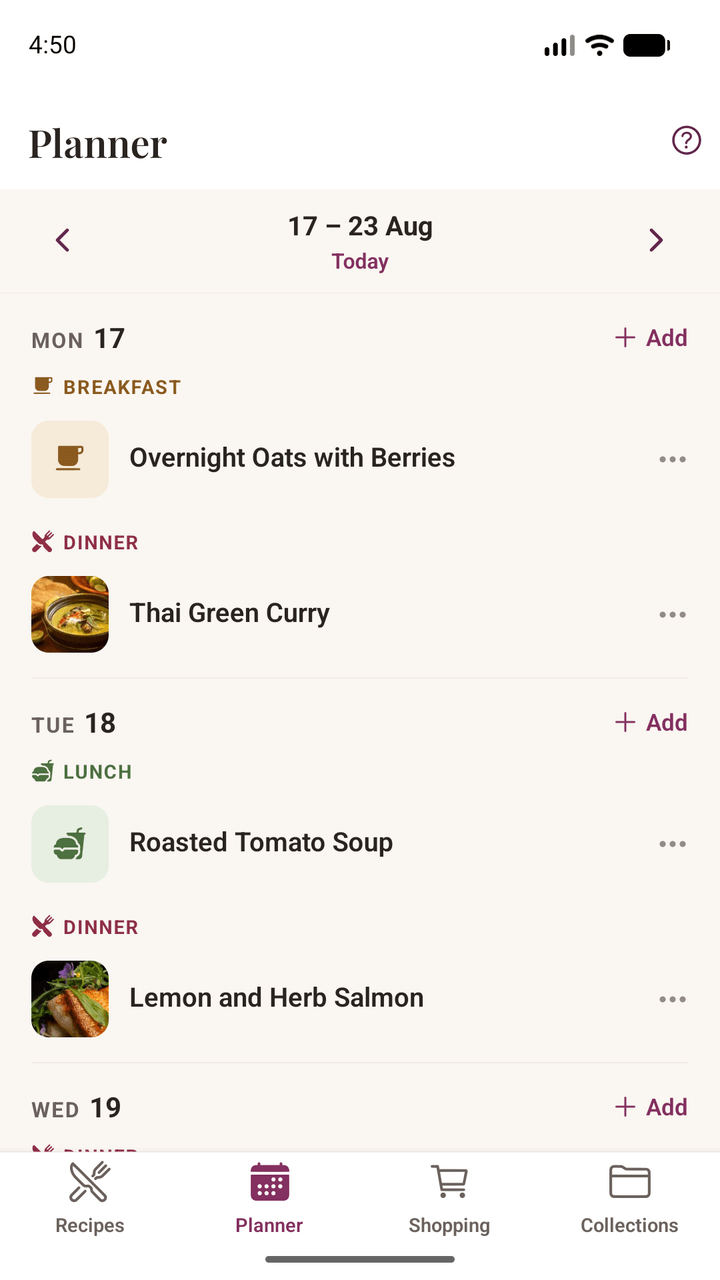
The planner
The Planner tab shows one week at a time, with breakfast, lunch, dinner, and snack slots on each day. Pick a day, choose a recipe, and set the slot.
- Occasions are free text — "Sunday lunch", "Mum's birthday". Labels you've used before are offered as suggestions.
- Head count lives on the meal, not the recipe. The same dish can feed four on Tuesday and twelve at a party. Leave it blank to use whatever the recipe says.
- Opening a planned meal shows it already scaled to that head count.
You can plan the same recipe twice in one day, or two recipes in one slot — neither is treated as a mistake.
The shopping list
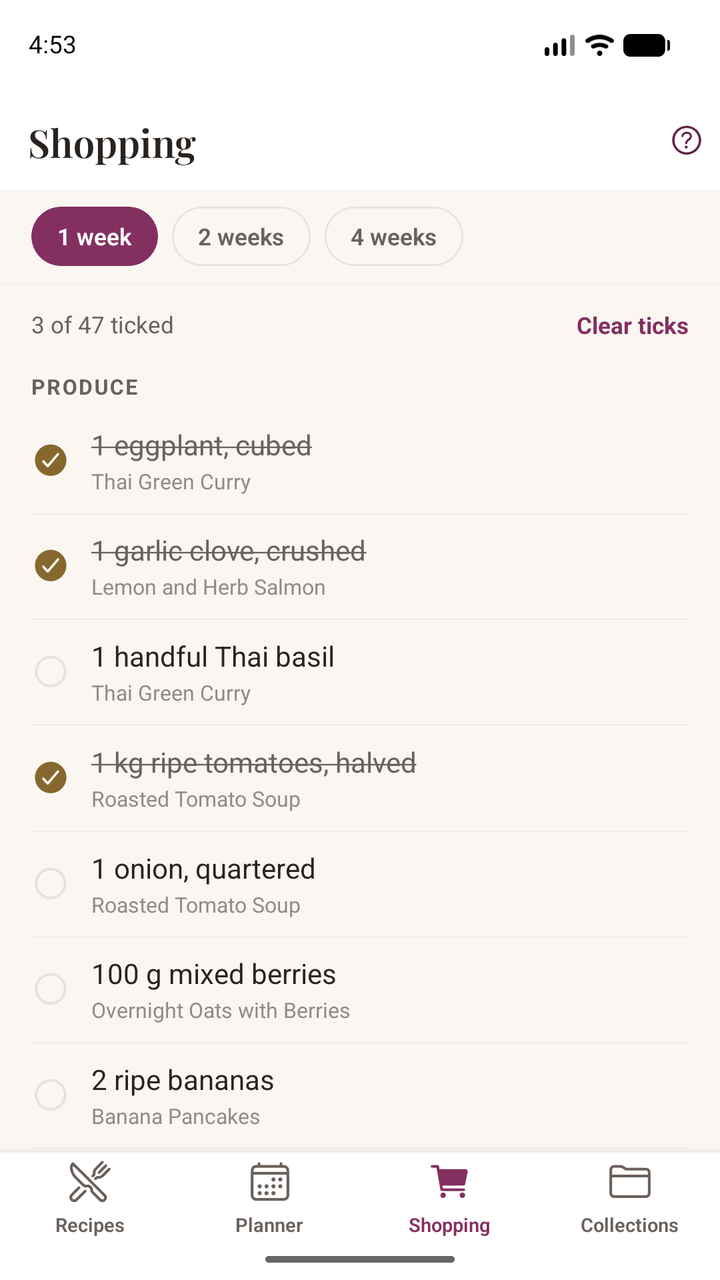
The Shopping tab builds itself from what you've planned, grouped by supermarket aisle so you're not criss-crossing the shop. Choose whether to cover the next one, two, or four weeks.
- It starts from today, not from Monday. A meal you already ate shouldn't follow you round the shop.
- Amounts are added up where they can be. 200g flour for one meal and 150g for another becomes 350g.
- Different units stay on separate lines. "200g flour" and "2 cups flour" aren't combined, because converting between them properly is something the app doesn't do yet — and an invented total is worse than two honest lines.
- It works the same for Spanish recipes as English ones: "cebolla" goes under Produce, just as "onion" does.
- Ticks stay put as you shop, and survive closing the app.
Organizing
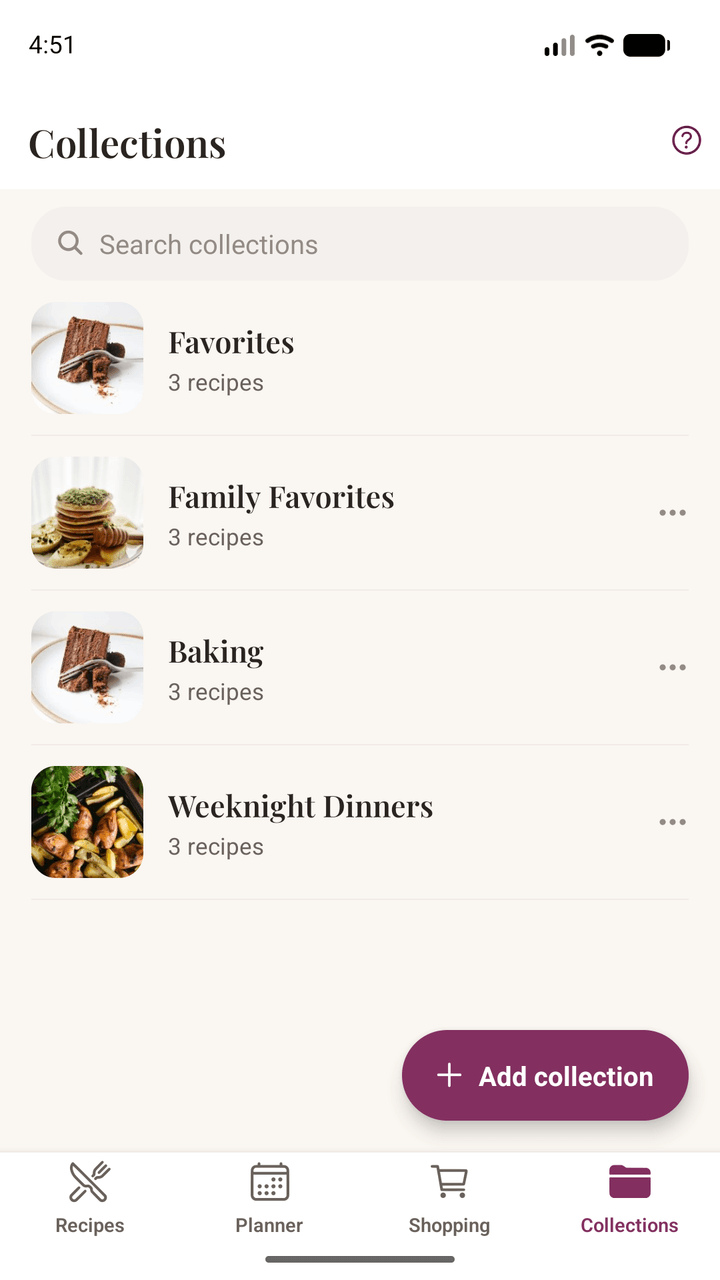
Collections
Collections are named groups — "Weeknight dinners", "Christmas", "Things the kids will actually eat". A recipe can be in as many as you like. Add one from a recipe's own page using the folder button, or create collections from the Collections tab.
Deleting a collection never deletes the recipes inside it.
Favorites
Tap the heart on any recipe. Once you've hearted something, a Favorites filter appears on My Recipes and a Favorites group appears at the top of Collections. It can't be renamed or deleted — unheart a recipe to take it out.
Meal types and searching
Give a recipe a type — breakfast, dinner, dessert, baking, and so on — and it gets a matching icon and a filter chip. Only types you've actually used are offered, so the row stays short.
Search looks at ingredients as well as titles, so searching "chorizo" finds the recipes that use it even when it isn't in the name. Search and the type filters work together.
Notes
Every recipe has a notes field for the things you'd otherwise scribble in a margin — "needed 10 minutes longer", "use half the sugar". Notes are yours alone and never travel with a shared recipe.
Sharing a recipe
Open a recipe and tap the share icon in the top bar to send it through your phone's usual share sheet — a message, an email, whatever you normally use. Nothing is uploaded and no file is created. The message is written on your phone and handed straight to the app you pick.
What gets sent depends on where the recipe came from:
| Recipe | What's sent |
|---|---|
| One you wrote yourself | The full recipe as plain text |
| One you imported | The title and a link to the original |
That second row is deliberate. If someone else wrote the recipe, the fair thing is to point at their page rather than retype their words into a message — so credit stays where it belongs.
It's sent as ordinary text, so whoever receives it can just read it, with or without the app. If they do have Damson Kitchen, the message is laid out so it imports cleanly. The message is written in the recipe's own language, so a Spanish recipe goes out with Spanish headings even from an English phone.
Backups and moving to a new phone
Because your recipes live on your phone rather than on our servers, keeping a backup is worth a minute of your time — and it's the same feature that moves everything to a new phone.
Export
Go to Settings → Data & Backup → Export My Data. The app bundles every recipe, collection, note, planned meal, and photo into a single file and hands it to your share sheet. Keep it somewhere of your own — your cloud storage, an email to yourself, or another of your devices.
We never receive that file. It's created on your phone and goes only where you send it.
Send it somewhere off the phone — a cloud drive, or an email to yourself. A backup saved only to the device it came from won't survive a factory reset or a lost handset, which are the two things it exists to protect you from.
Settings shows the date of your last backup, and once you've built up a few recipes the app will quietly point out when it's been a while and you've changed things since. A small dot on the settings icon is the signal; the detail is in Settings itself.
Import
On the new phone, install the app and choose Settings → Data & Backup → Import, then pick the file. You'll be asked how to handle it:
- Merge adds everything from the file alongside what's already there. This is the safe choice and the one offered first.
- Replace clears the recipes on this phone first. Use it when you're setting up a new phone and want an exact copy.
A backup made by an older version of the app will always still import.
Your appearance, language and week-start choices aren't in the file — a backup carries your recipes, not the settings of the phone it came from.
Settings
- Appearance — Light, Dark, or System. System follows whatever your phone is doing, including its schedule.
- Language — System, English, or Español. System follows your phone's language. It changes only the app's own words: your recipes stay in the language they were written in, and the app reads English and Spanish recipes whichever you choose.
- Week starts on — Monday or Sunday, whichever you think in. The planner re-frames the week you're looking at rather than jumping you elsewhere.
Troubleshooting
An import came back mostly empty
Some pages don't publish their recipe in a way any app can read, and a few block automated readers entirely. The fix is usually to copy the recipe text yourself: select it, copy, then use the clipboard icon on My Recipes and paste. That path works on anything you can select.
Sharing from TikTok only gives the video link
TikTok shares the link without the caption, and the recipe is in the caption. Copy the caption text, then paste it using the clipboard icon. The app will tell you when it spots this and point you the same way.
Instagram gave nothing back
Instagram sometimes serves a sign-in page instead of the post. Waiting a moment and trying again often works; failing that, copy the caption and paste it.
My recipes aren't in English or Spanish
Damson Kitchen reads recipes written in English or Spanish. The language matters because the app doesn't just display a recipe, it reads one — working out that a line is an ingredient, that "1½ tbsp" is an amount and a unit, and where the method begins. All of that is language by language, so another language means teaching it to read that language, not swapping the labels.
You can write recipes in any other language too: type or paste them and they are saved exactly as you wrote them. What won't work yet is the automatic part — amounts won't scale, and the shopping list can't add them up.
A scan came back as gibberish
Handwriting is the usual answer, especially joined-up. The text is read on your phone rather than sent to a service, which keeps your recipes private but does mean neat print is what it handles best. A flatter, better-lit photo with the page filling the frame helps; failing that, typing it into the same box is quicker than correcting it line by line.
A scanned recipe has ingredients among the steps
Use Check ingredients & method in the import box: it marks where the app thinks the recipe divides, so you can see it before importing. If a heading is in the wrong place, put your cursor in that line and use the arrows to move it — the import follows the headings. Anything still out of place can be moved in the editor afterwards, where each ingredient has a move button and steps have the mirror of it.
A recipe's photo has gone
Photos are files on your phone, so a phone-cleaning app or a manual clear-out can remove them. The recipe itself is unaffected — it falls back to its meal-type icon or its initial, and you can add a new photo any time. This is a good argument for an occasional Export.
An amount didn't scale
Only amounts the app could read get scaled. "A few sprigs of thyme" has no number to multiply, so it's shown exactly as you wrote it. If a line should have been understood, tap the grey interpretation beneath it in the editor and correct it.
Ingredients ended up as a method step, or a heading became an ingredient
Import works from the shape of the text, and some pages are genuinely ambiguous. Everything is editable after import — tap Edit and move the line where it belongs.
Still stuck?
We'd rather hear about it than have you struggle. In the app, open Settings → Get Support — it starts an email with your app version and phone model already filled in, which usually saves a round of questions. Those details are in the body of the message, so you can read them and delete anything you'd rather not send.
Email: hello@damsonkitchen.com
If something's wrong with an import, telling us the page you were importing from helps enormously — it's usually the fastest route to a fix that helps everyone.